Want to streamline your software development process? Azure DevOps offers a powerful, integrated suite of tools that can transform how your team builds, tests, and deploys applications—fast, reliable, and at scale.
What Is Azure DevOps and Why It Matters

Azure DevOps is Microsoft’s comprehensive platform for end-to-end software development and delivery. It brings together planning, coding, building, testing, and deployment into a unified environment, enabling teams to collaborate more efficiently and deliver value faster. Whether you’re a startup or an enterprise, Azure DevOps provides the infrastructure and tools needed to implement modern DevOps practices.
Core Components of Azure DevOps
Azure DevOps isn’t a single tool—it’s a suite of five major services that work together seamlessly. These include Azure Boards for agile project management, Azure Repos for source control, Azure Pipelines for CI/CD, Azure Test Plans for testing, and Azure Artifacts for package management. Together, they form a complete DevOps ecosystem.
- Azure Boards: Manage work items, sprints, and backlogs with Kanban and Scrum support.
- Azure Repos: Host Git repositories or use Team Foundation Version Control (TFVC).
- Azure Pipelines: Automate builds and deployments across platforms and clouds.
Each component can be used independently or integrated for a full lifecycle solution. This modularity makes Azure DevOps flexible for teams of all sizes and tech stacks. For more details, visit the official Microsoft Azure DevOps documentation.
Benefits of Using Azure DevOps
Teams adopt Azure DevOps because it accelerates delivery, improves collaboration, and enhances software quality. With built-in automation and real-time insights, developers can focus on writing code while the platform handles the heavy lifting of integration and deployment.
- End-to-end traceability from idea to production.
- Seamless integration with GitHub, Jenkins, and other third-party tools.
- Scalable cloud-based infrastructure with enterprise-grade security.
“Azure DevOps helps teams deliver software faster and with higher quality by automating the software delivery process.” — Microsoft Azure Team
Azure DevOps vs. Competitors: How It Stands Out
In the crowded DevOps tooling market, Azure DevOps competes with platforms like GitHub Actions, Jenkins, GitLab CI/CD, and AWS CodePipeline. What sets Azure DevOps apart is its deep integration with Microsoft’s ecosystem, robust enterprise features, and comprehensive toolset—all under one roof.
Comparison with GitHub Actions
While GitHub Actions excels in simplicity and tight GitHub integration, Azure DevOps offers a more complete solution. Azure DevOps includes project management (Boards), testing (Test Plans), and artifact management (Artifacts), which GitHub Actions lacks unless combined with other tools.
- Azure DevOps: Full lifecycle management.
- GitHub Actions: Focused on CI/CD, often requires third-party tools for planning and testing.
For teams already using GitHub, Azure Pipelines can still integrate directly with GitHub repositories, giving the best of both worlds. Learn more at Azure Pipelines on GitHub Marketplace.
Advantages Over Jenkins
Jenkins is a powerful open-source automation server, but it requires significant setup, maintenance, and plugin management. Azure DevOps, on the other hand, is a managed service—no infrastructure to maintain, automatic updates, and built-in scalability.
- Zero server maintenance with Azure DevOps.
- Jenkins requires DevOps expertise to configure and secure.
- Azure Pipelines supports YAML-based pipelines, offering similar flexibility to Jenkins with less overhead.
This makes Azure DevOps ideal for teams that want to focus on development rather than infrastructure management.
Setting Up Your First Azure DevOps Project
Getting started with Azure DevOps is straightforward. You’ll need a Microsoft account, after which you can create an organization and a project. From there, you can enable the services you need and begin configuring your workflows.
Step-by-Step Project Creation
1. Go to dev.azure.com and sign in with your Microsoft account.
2. Click “New Organization” and follow the prompts.
3. Once your organization is created, click “New Project” and give it a name.
4. Choose the visibility (public or private), version control (Git or TFVC), and work item process (Agile, Scrum, or CMMI).
5. Click “Create” and your project is ready.
This initializes your project with all Azure DevOps services enabled by default. You can disable any you don’t need.
Configuring User Access and Permissions
Security is critical in any DevOps environment. Azure DevOps uses role-based access control (RBAC) to manage permissions. You can assign users to groups like “Project Administrators,” “Developers,” or “Readers” based on their responsibilities.
- Navigate to Project Settings > Permissions to manage access.
- Use Azure Active Directory (AAD) for enterprise identity management.
- Enable two-factor authentication (2FA) for added security.
Proper access control ensures that only authorized personnel can make changes to code, pipelines, or configurations.
Mastering Azure Boards for Agile Project Management
Azure Boards is the backbone of planning and tracking in Azure DevOps. It supports agile methodologies like Scrum and Kanban, allowing teams to visualize work, manage backlogs, and track progress through sprints.
Creating and Managing Work Items
Work items in Azure Boards represent tasks, bugs, user stories, or features. You can create them manually or import them in bulk. Each work item can have custom fields, attachments, and links to code or builds.
- Use tags to categorize work items (e.g., “frontend,” “bug,” “high-priority”).
- Link work items to commits and pull requests for traceability.
- Set up queries to filter and report on work items.
This level of traceability ensures that every change in code can be tied back to a business requirement or user story.
Using Dashboards and Reports
Azure Boards provides customizable dashboards with widgets for burndown charts, backlog progress, build status, and more. These dashboards give real-time visibility into team performance and project health.
- Add widgets like “Build Success Rate” or “Sprint Burndown.”
- Share dashboards with stakeholders for transparency.
- Export reports to PDF or Excel for offline review.
These insights help teams identify bottlenecks and improve their processes over time.
Leveraging Azure Repos for Source Control
Azure Repos provides secure, scalable Git repositories for your code. It supports both cloud-hosted repos and integration with external repositories like GitHub or Bitbucket.
Git Workflow Best Practices in Azure Repos
To maximize efficiency, teams should adopt a consistent Git branching strategy. Azure Repos supports popular models like Git Flow, GitHub Flow, and Trunk-Based Development.
- Create feature branches for new development.
- Use pull requests to review and merge code.
- Enforce branch policies to require approvals and status checks.
These practices ensure code quality and prevent unauthorized changes from reaching production.
Pull Requests and Code Reviews
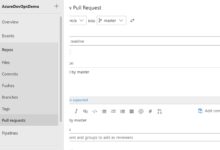
Pull requests (PRs) are central to collaboration in Azure Repos. When a developer completes a feature, they create a PR to merge their branch into the main branch. Team members can then review the code, leave comments, and approve the changes.
- Enable mandatory reviewers for critical branches.
- Integrate static code analysis tools (like SonarQube) into PRs.
- Automatically trigger builds when a PR is created.
This creates a feedback loop that catches issues early and improves code quality.
Automating CI/CD with Azure Pipelines
Azure Pipelines is one of the most powerful features of Azure DevOps. It enables continuous integration (CI) and continuous delivery (CD) across multiple platforms, including Windows, Linux, macOS, and containers.
Creating Your First CI Pipeline
To set up a CI pipeline, you define a YAML file that specifies the build steps. This file is stored in your repository, making it version-controlled and reusable.
- Go to Pipelines > New Pipeline.
- Select your code source (Azure Repos, GitHub, etc.).
- Choose a template (e.g., “Node.js,” “Docker,” “.NET Core”).
- Edit the YAML to customize the build process.
Once saved, the pipeline runs automatically on every push to the specified branch. For detailed guidance, see the YAML pipeline documentation.
Setting Up CD for Multi-Environment Deployments
Continuous delivery extends CI by automatically deploying builds to staging, testing, and production environments. Azure Pipelines supports deployment groups, Kubernetes, and cloud platforms like Azure App Service and AWS.
- Define stages in your YAML pipeline (e.g., dev, staging, prod).
- Use approvals and gates to control promotions between environments.
- Enable deployment history and rollback capabilities.
This ensures consistent, reliable deployments with minimal manual intervention.
Ensuring Quality with Azure Test Plans
High-quality software requires thorough testing. Azure Test Plans provides tools for manual, exploratory, and automated testing, all integrated within the Azure DevOps ecosystem.
Manual and Exploratory Testing
Testers can use Azure Test Plans to create test suites, run manual test cases, and log bugs directly from the interface. Exploratory testing allows testers to investigate the app without predefined scripts, capturing steps and screenshots as they go.
- Link test cases to user stories and requirements.
- Record test sessions with video and telemetry.
- Generate traceability reports to show test coverage.
This ensures that all features are validated before release.
Integrating Automated Tests
Azure Pipelines can run automated tests as part of the CI/CD process. You can integrate unit tests, integration tests, and UI tests using frameworks like NUnit, JUnit, Selenium, or Playwright.
- Run tests in parallel to reduce execution time.
- Fail the build if tests don’t pass.
- Generate test result reports and publish them in Azure DevOps.
This creates a safety net that prevents regressions and maintains software stability.
Managing Dependencies with Azure Artifacts
Modern applications rely on external libraries and packages. Azure Artifacts helps teams manage these dependencies by providing private NuGet, npm, Maven, and Python feeds.
Creating and Publishing Packages
You can publish your own libraries as packages to a private feed, making them available to other projects within your organization.
- Create a feed in Artifacts and connect to it using CLI or IDE.
- Publish packages using commands like `nuget push` or `npm publish`.
- Version packages semantically to avoid conflicts.
This promotes code reuse and ensures consistency across projects.
Consuming Packages in Pipelines
Azure Pipelines can restore packages from Azure Artifacts during the build process. This ensures that the correct versions are used and that builds are reproducible.
- Add a “.NET Core Restore” or “npm install” task in your pipeline.
- Authenticate with the feed using service connections.
- Cache packages to speed up builds.
This integration streamlines dependency management and reduces build times.
Integrating Azure DevOps with Other Tools
Azure DevOps is designed to work with a wide range of third-party tools and services, making it adaptable to existing workflows.
Integration with GitHub and Slack
You can connect Azure Pipelines directly to GitHub repositories, enabling CI/CD without migrating your code. Notifications can be sent to Slack channels when builds succeed or fail.
- Use the GitHub extension for Azure DevOps.
- Set up service hooks to trigger Slack messages.
- Synchronize issues and pull requests between platforms.
This creates a seamless experience across tools.
Connecting to Monitoring and Observability Tools
Integrate Azure DevOps with tools like Azure Monitor, Application Insights, or Datadog to gain insights into application performance post-deployment.
- Link deployments to telemetry data.
- Automatically create incidents based on alerts.
- Use deployment annotations to correlate code changes with performance trends.
This closes the loop between development and operations.
What is Azure DevOps?
Azure DevOps is a Microsoft platform that provides a suite of development tools for planning, coding, building, testing, and deploying software. It supports DevOps practices by enabling automation, collaboration, and continuous delivery.
Is Azure DevOps free to use?
Azure DevOps offers a free tier for small teams (up to 5 users), including unlimited private repositories and 30,000 minutes of CI/CD per month. Paid plans are available for larger teams and higher usage.
Can Azure DevOps work with GitHub?
Yes, Azure DevOps integrates seamlessly with GitHub. You can trigger Azure Pipelines from GitHub commits, manage issues, and even use GitHub as the source for your CI/CD workflows.
What is the difference between Azure DevOps and Azure DevOps Server?
Azure DevOps is the cloud-based service, while Azure DevOps Server is the on-premises version. Both offer similar features, but the cloud version includes automatic updates and global scalability.
How secure is Azure DevOps?
Azure DevOps is built on Microsoft’s secure cloud infrastructure, with features like role-based access control, encryption at rest and in transit, and compliance with standards like ISO 27001, SOC 2, and GDPR.
Azure DevOps is more than just a tool—it’s a complete platform for modern software delivery. From agile planning with Azure Boards to automated CI/CD with Azure Pipelines, it empowers teams to build better software, faster. Its integration capabilities, enterprise-grade security, and flexible pricing make it a top choice for organizations embracing DevOps. Whether you’re just starting or scaling a large team, Azure DevOps provides the tools and insights needed to succeed in today’s fast-paced development landscape.
Further Reading:
